How to Quickly Upscale Images in Krea
by The Krea Team
Quick Upscale is the fastest way to enhance a finished image generation without opening a separate tool. Open any Image session, hover a result, and Krea adds the upscaled version to the bottom of that same session.
Open an Image session
Go to Image and open a session that already has finished generations. You can use any session with completed images; the Quick Upscale action appears directly on the generated image cards.
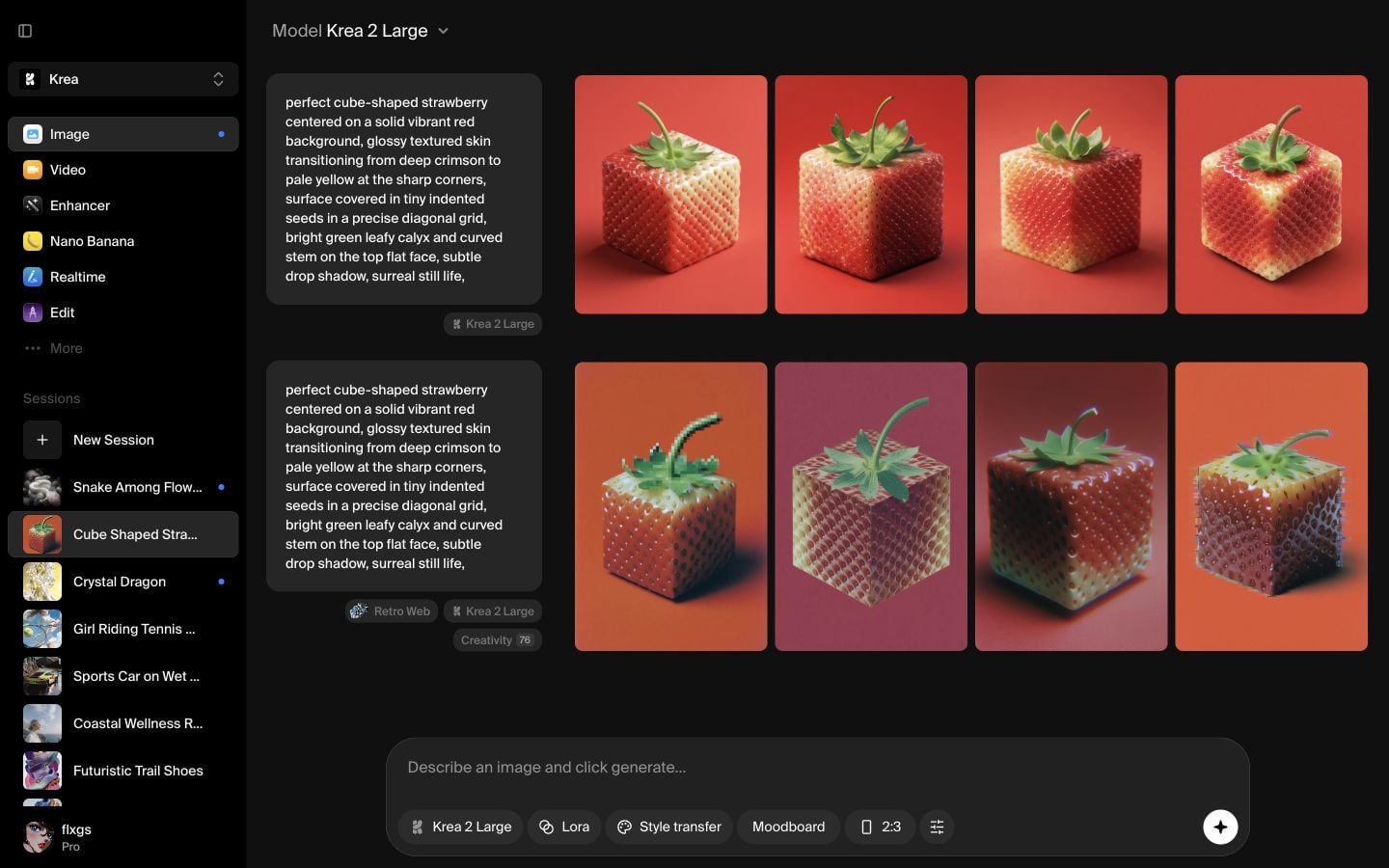
Hover a generation
Move your cursor over the image you want to upscale. The hover actions appear over the image, including Quick Upscale. This is the shortcut to use when the image is already good and you only want a cleaner, larger version.
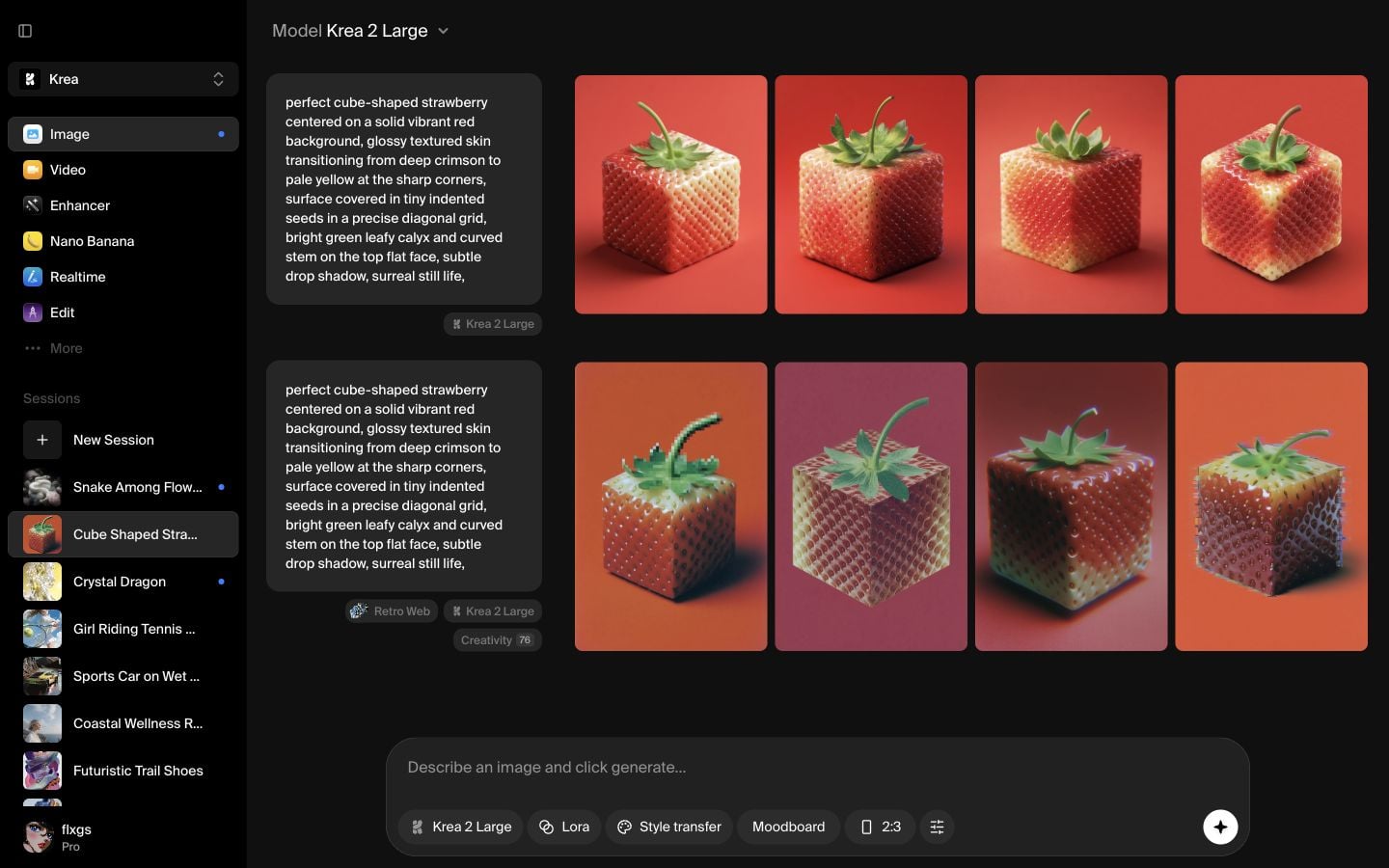
Click Quick Upscale
Click Quick Upscale on the hovered image. Krea starts a new upscale result in the same session and places it below the original generation row.
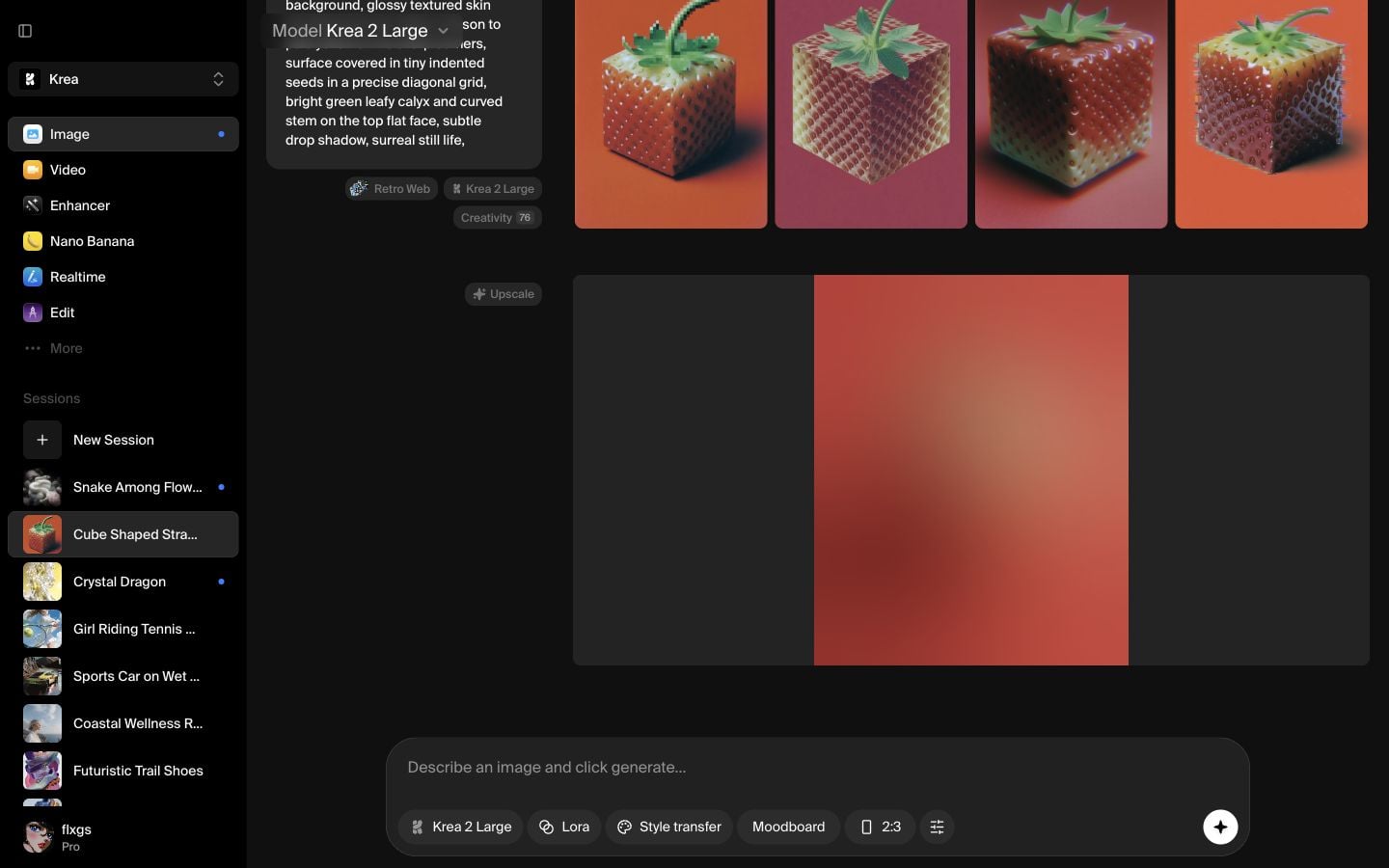
Check the result at the bottom
Scroll to the bottom of the session to find the upscaled result. Once it finishes, you can keep working from that image, download it, or use it as the cleaner version for your next step.
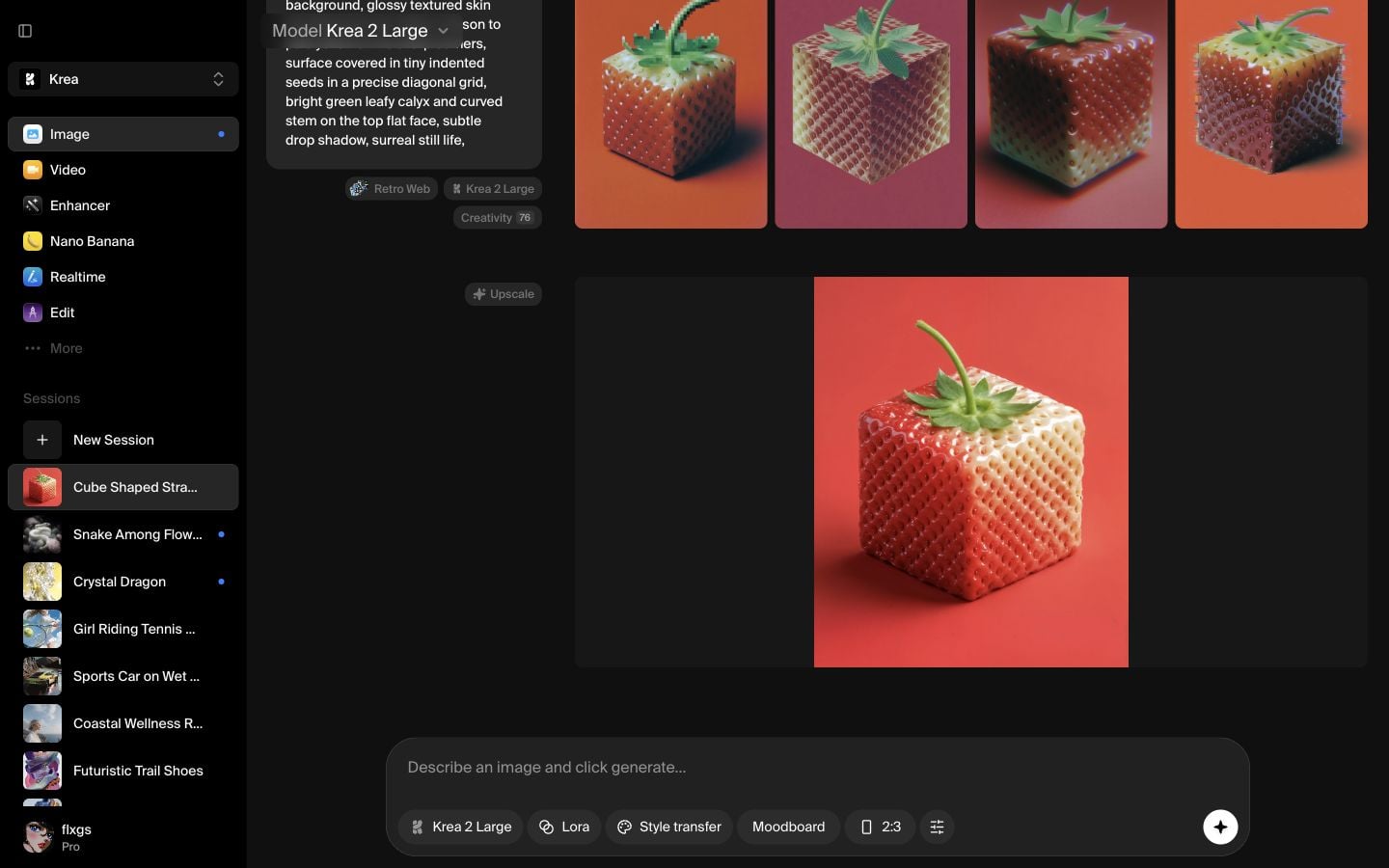
Quick checklist
- Start from an Image session with completed generations.
- Hover the image you want to upscale.
- Click Quick Upscale from the hover actions.
- Look at the bottom of the same session for the new result.
- Wait for the result to finish before downloading or continuing.
When to use Quick Upscale
Use Quick Upscale when the composition, subject, and style already work, but you want a sharper or larger version. If you need more control over the enhancement model or settings, use the dedicated Enhancer tool instead.
Quickly upscale an image
Open an Image session, hover a finished generation, and use Quick Upscale to create a cleaner version in the same session.
Open ImageFrequently asked questions
Open an Image session and hover over a finished image generation. The button appears in the hover actions on the image.
No. Krea adds the result to the bottom of the same Image session so you can compare it with the original generation.
Use Quick Upscale for the fastest one-click improvement. Use Enhancer when you want more model choices or more control over the upscale settings.
Yes. After the result finishes, hover or open the upscaled image and use the download action.